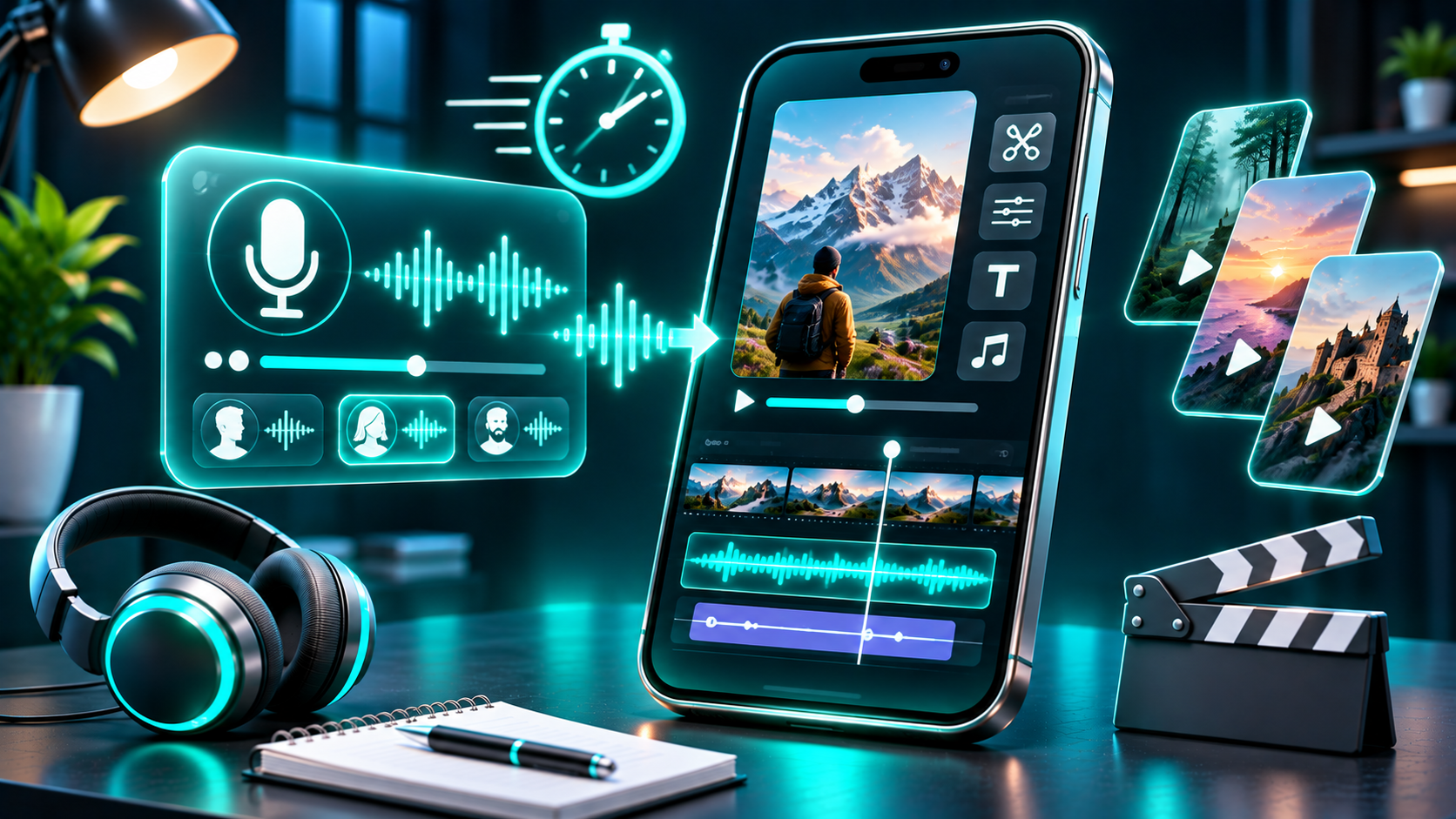
If your clips and script are ready, you can generate a voiceover, place it over your edit, and prepare a TikTok or Instagram Reel in about five minutes. Treat that as a realistic target, not a guarantee: first-time setup, pronunciation fixes, captions, and policy checks can add time.
This guide focuses on an externally generated voiceover: create an audio file with a text-to-speech tool, then add it to your video. TikTok and Instagram also offer native text-to-speech features that read on-screen text inside the app. Those are quick platform effects, not a separate narration file you edit and time against footage. TikTok, for example, reads selected text on a video aloud from its editing screen.
The five-minute workflow
1. Write a short script — about 1 minute
Choose one idea and write for the ear: short sentences, familiar words, and one clear point. A 15-second video needs only a few spoken lines. Read the draft aloud once and remove anything you would not naturally say.
For a desk-organizer video, the script might be: “Still losing your charging cables? This small tray keeps the everyday ones in reach. Pick a spot by your desk, drop them in, and you’re done. Save this idea for your next tidy-up.”
That gives the narration an opening, a concrete benefit, and a next step. If the video promotes a product or service, keep every claim accurate. Do not use synthetic narration to make a real person appear to endorse something they did not endorse.
2. Generate and preview the voice — about 1 minute
Paste your final text into a text-to-speech tool, select an available voice, and preview the full read. Listen for names, numbers, abbreviations, emphasis, and the last sentence. If a word sounds wrong, try rewriting it phonetically or regenerate just that section if the tool allows it.
FlashTTS describes an online text-to-speech tool on its
Text to Speech page. Check the current interface for its available voices, languages, export options, and the usage terms that apply to your account. Do not assume a language or dialect—including Urdu or Hindi—is available until you see it listed and have tested a sample. A listed language also may not match the regional accent or pronunciation you need.
Use only a voice you have permission to use. For a voice clone, use your own voice or get clear authorization from the person whose voice it is. Do not imitate someone to mislead viewers or imply an endorsement. A tool’s features do not grant rights to another person’s identity.
3. Add the audio to your edit — about 1½ minutes
Open an editor, import your vertical clips, and add the generated narration as a separate audio track. Trim silence at the beginning, line up key phrases with the relevant shots, and leave a moment after the final words. Lower or mute original clip audio if it competes with the voice. Keep any background music quiet enough for every line to be understood.
[Screenshot placeholder: Add an original screenshot of an editing timeline showing the narration waveform aligned with three vertical clips.]
You can also use the platform’s built-in editing tools. TikTok lets you upload a video from your device and edit clips, add sound, or record an in-app voiceover. Instagram’s Reels help covers adding camera-roll clips and editing Reel clips. Controls may vary by device, account, or app update, so follow the labels in your current version.
For TikTok’s native text-to-speech, upload or record a video, add text, tap the text, then choose Text-to-speech. Instagram lists a native text-to-speech option for Reels as well. With either feature, the platform reads text as part of its own workflow. With external TTS, you create a separate audio asset, align it in an editor, and upload the finished video. Decide which route you want before editing so you do not accidentally layer two narrators.
4. Check captions and audio — about 1 minute
Watch once with sound and once muted. Confirm the narration starts at the right moment, the visuals match the words, and the final line is not cut off. Check captions against the audio: automatic transcription can mishear names, specialist terms, or numbers. TikTok provides auto-generated and creator captions that can be reviewed and edited in the app.
Keep important text away from screen edges and interface controls. Captions help people follow the story, but they cannot rescue a voice track that is too fast or hard to hear.
5. Upload and review before posting — about 30 seconds
Export the video, choose it from your camera roll in TikTok or Instagram, then preview the post. Review the caption, cover, audience, and any disclosure controls. If cross-posting, check each app separately; one platform’s labels or music permissions do not automatically transfer to another.
AI voiceover disclosure: what to check
TikTok includes AI-generated audio in its definition of AI-generated content. Its guidance requires labels for AI-generated content containing realistic images, audio, or video, and encourages labeling content completely generated or significantly edited by AI. That means a realistic synthetic narrator can make disclosure relevant even when the footage is ordinary. Review the current AI-generated content setting in TikTok’s post flow. TikTok says labeling does not affect distribution when the post follows its Community Guidelines.
Meta says it applies “AI info” labels to a broader range of video, audio, and image content when it detects industry-standard AI signals or when a person discloses that content is AI-generated. The platform’s labeling process may evolve, so check Instagram’s current publishing controls and applicable policies. Disclose when needed to avoid giving viewers a misleading impression about who is speaking or how the audio was made.
Native text-to-speech and externally generated audio are different production routes, but neither should be treated as an automatic exemption from the platform’s current rules. Assess the actual finished post.
Music rights still matter
An AI-generated voice does not clear a song underneath it. Music rights depend on the track, platform, account, region, and how the video will be used. A song available for a personal post may not be cleared for a brand promotion, paid campaign, or cross-posted export.
For content promoting a brand, product, or service, TikTok recommends music from its Commercial Music Library. The platform says its licenses for music outside that library do not cover commercial use in content; using outside music or an original sound in that context requires confirming the necessary rights.
Instagram says music in its licensed library is intended for personal, non-commercial use, and some business accounts or post types may not have access. Meta’s Sound Collection is an option for commercial use such as ads. Instagram also says licensed audio can be muted if music-rights agreements change. If you plan to boost an Instagram Reel, its help page says licensed music is not eligible and recommends royalty-free music such as Sound Collection audio, or original audio.
A practical approach is to use music you created, have permission to use, or that is cleared for the exact platform and purpose. If you may cross-post or promote the video later, verify the rights for each use. “Royalty-free” does not necessarily mean unrestricted, and platform music access should not be assumed to travel with a downloaded video.
Common questions
Can I really do it in five minutes?
Often, if you have the script, clips, and editing app ready and the narration needs little revision. Leave extra time for account setup, slow uploads, pronunciation fixes, captions, and audio checks. Five minutes is a workflow target, not a promise about generation speed or finished quality.
Is external narration better than in-app text-to-speech?
They are useful for different edits. Native text-to-speech is convenient when you want the app to speak text on screen. An external voiceover is a separate file you can time against footage in an editor and include in an exported video. Choose based on the workflow you need, then preview the result before posting.
Can I monetize a video with AI narration?
Do not assume that AI narration guarantees monetization eligibility or makes a video ineligible by itself. Monetization depends on the platform’s current program rules, content policies, and rights to every asset. Check those rules for your account and intended use. For sponsored or commercial posts, confirm that both music and voice assets are cleared for that purpose.
Does FlashTTS support Urdu or Hindi?
Check the current language and voice options on the product interface instead of relying on an unverified claim. Test a representative line before producing a full video, especially if a specific regional accent matters.
Try the workflow
Have a script ready? Visit
FlashTTS Text to Speech to review current options and try generating narration. Confirm the available export format and applicable usage terms in the interface before building a commercial workflow around it.