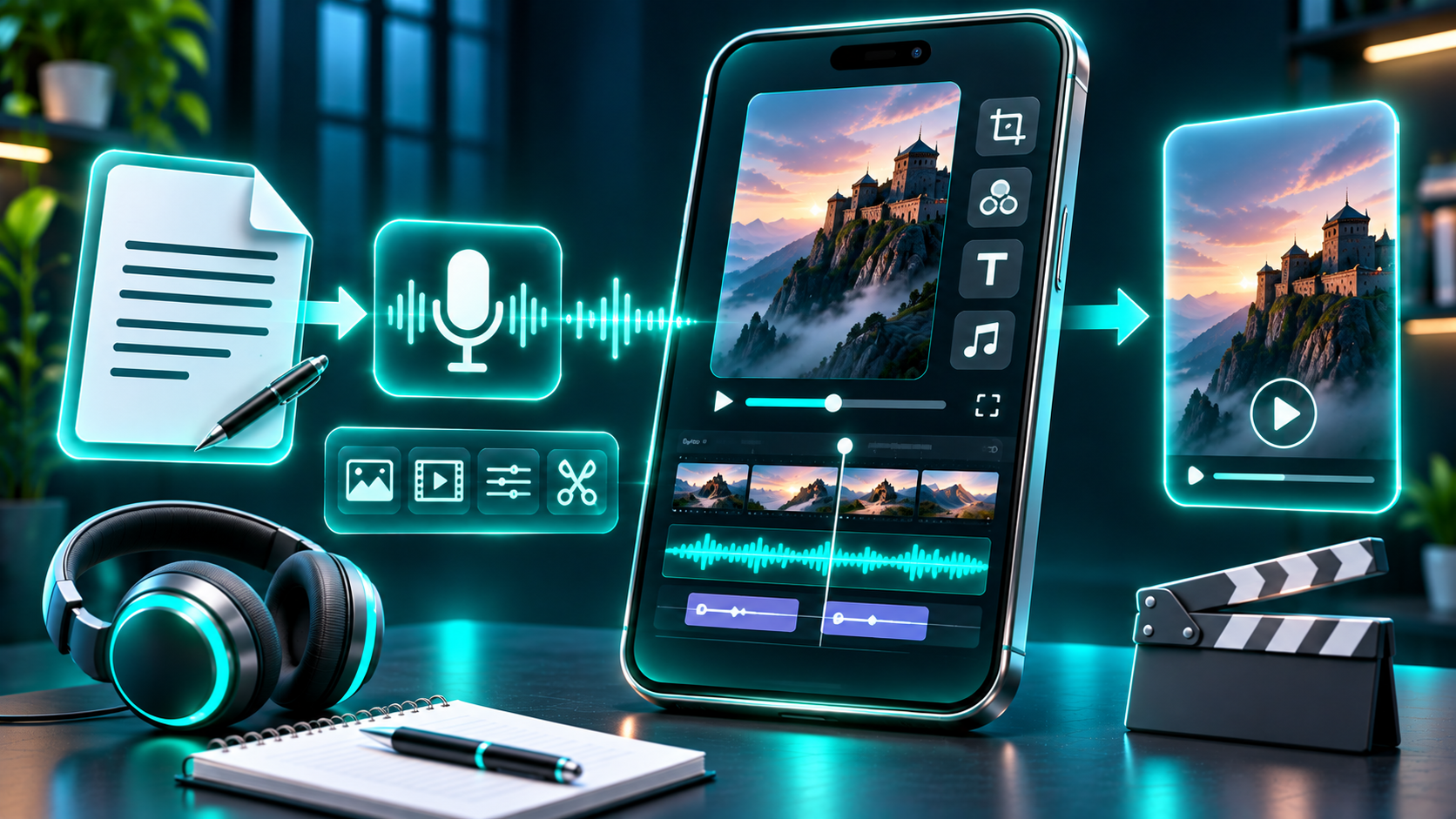
Text-to-speech can help you narrate a YouTube Short without recording a voice track yourself. It does not replace the parts that make a video useful: a clear idea, a human-reviewed script, relevant visuals, accurate captions, and rights-cleared assets.
This end-to-end workflow takes you from idea to upload. You can use a video editor and TTS tool of your choice; the checks below apply whichever tools you use.
1. Choose one idea and write for the ear
Start with a single promise to the viewer. A Short might explain one cooking shortcut, define one unfamiliar term, or show how to complete one small task. Avoid trying to squeeze a full guide into a few sentences.
Write the first line to make the subject immediately clear. Then deliver the useful information in a simple sequence: the problem or question, the explanation or steps, and a concise ending. A closing prompt can invite a relevant comment or point viewers to another video, but it should not distract from the answer.
For example, a Short about keeping houseplants alive could open with: “Is your pothos turning yellow? Check these three things before you water it again.” The body can explain the checks, while the last line tells viewers what to do next. Make sure the advice is accurate and specific; do not add a dramatic claim just to create a hook.
Read the script aloud before generating audio. Replace long sentences, tongue-twisting phrases, unexplained abbreviations, and punctuation that might make a voice pause in the wrong place. If the topic includes names, technical terms, dates, or non-English words, mark pronunciation notes for yourself and verify them in the rendered narration.
2. Generate the narration and listen before editing
Paste the final script into your chosen text-to-speech tool. Select a voice that suits the subject and audience, then generate a short test if the interface allows it. Listen for pronunciation, pace, emphasis, and natural pauses—not just whether every word is present.
If a sentence sounds stiff, revise the writing first. Breaking one long sentence into two or using a comma may help, but listen again after each change. Keep the delivery easy to follow. An overly fast read can make a short video harder to understand, while very slow narration may leave the visuals feeling static.
Download or export the audio in a format accepted by your editor, if that option is available in the tool you choose. Keep the script and final audio together so you can check the edit against the exact words that were spoken.
FlashTTS provides a
text-to-speech interface for turning text into speech. Its public pages describe product options that can change, so check the current interface for available voices, languages, export formats, and account requirements before building a workflow around a particular feature. In particular, do not assume that a language—including Urdu or Hindi—is currently available just because a product page gives a broad language count. Confirm it in the voice selector and test a sample with a fluent speaker before publishing.
If you use voice cloning, use your own voice or obtain clear permission from the person whose voice is being modeled. Do not present generated speech as a real person’s words or endorsement. A synthetic voice does not grant rights to imitate someone, and a clone should be used transparently and responsibly. FlashTTS describes voice cloning on its
voice-cloning page; verify its current consent and usage terms in the product before proceeding.
[Screenshot placeholder: Add an original screenshot of the current FlashTTS text-to-speech workflow here, if the publisher can capture and verify it.]
3. Build a vertical edit around the voice
Create a vertical project for a phone screen. YouTube currently categorizes eligible square or vertical uploads up to three minutes as Shorts for standard channels, with the relevant upload-date rules on its Help page. Check the official guidance before publishing if your channel type or video timing could affect classification.
Import the narration first. Use its timeline to place images, clips, screen recordings, or simple text cards where they help explain the words. Match each visual to the line being spoken. A visual change is useful when it clarifies a new point; constant motion is not a substitute for relevance.
Keep important text and faces away from the extreme edges and lower portion of the frame, where player controls and interface elements may cover them on some screens. Preview the edit on a phone-sized display. Check that text is large enough to read, shots are not cropped awkwardly, and each image has a clear connection to the narration.
Set narration volume so it is easy to hear. If you add music or sound effects, keep them low enough that they do not compete with speech. Use audio you created, licensed, or are otherwise authorized to use. YouTube warns that copyright-protected material in a Short needs approval for use; an upload can receive a Content ID claim, and a valid copyright takedown can remove it and result in a strike.
For longer Shorts, be especially cautious with claimed music: YouTube says Shorts over one minute with an active copyright claim are blocked globally. Use the Shorts Audio Library through YouTube’s tools or music from the YouTube Audio Library where appropriate, and check the specific terms for any other track. A tool’s license for generated narration does not clear rights in a song, video clip, photograph, or other asset you add.
4. Add captions and check every word
Captions make the spoken content available to viewers who are deaf or hard of hearing and can help people follow along in different viewing situations. You can add subtitles or captions in YouTube Studio by selecting the video, choosing a language, and adding a caption track. YouTube also lets creators add captions during upload.
You can make captions in your editor and burn them into the picture, add a separate caption track, or use both approaches if that suits the video. Keep captions synchronized with the speech, use short readable lines, and avoid putting them on top of important visual details. If you use auto-generated captions, review them rather than assuming they are correct. YouTube notes that automatic captions can misrepresent speech because of factors such as pronunciation, accents, dialects, and background noise.
Compare captions with the final narration—not only with your original script—because edits made during audio production can change the words. Pay special attention to names, numbers, technical vocabulary, and transliterated words. If you publish in a language you do not know well, ask a fluent reviewer to check spelling and meaning.
[Audio sample placeholder: Add a short, original narration sample with matching captions here only after recording or generating it and verifying the language and transcript.]
5. Export, upload, and make the final checks
Export a clean vertical video using your editor’s standard YouTube-compatible settings. Watch the exported file from beginning to end before uploading. Check the opening frame, narration clarity, caption timing, visual crops, and the final seconds. Listen once with headphones and once through a phone speaker if possible.
On a computer, YouTube Studio’s Shorts upload flow is Create → Upload videos. Choose a square or vertical video of up to three minutes, then complete its video details before publishing. YouTube’s upload instructions also remind creators to confirm that third-party copyrighted material is approved for use.
Write a title that accurately describes what viewers will learn. Add a concise description if it provides useful context, and select the audience and visibility settings that fit the video. Review the preview and any detected copyright checks in Studio before you publish. Do not treat the presence of an AI voice as a guarantee of either monetization or platform approval.
When do you need to disclose AI-generated content?
YouTube requires creators to disclose AI-generated or altered content that seems realistic in specified cases—for example, content that makes a real person appear to say or do something they did not, alters footage of a real event or place, or generates a realistic scene that did not happen. The disclosure is available in YouTube Studio during upload.
A text-to-speech narration by itself does not automatically mean every Short needs the same disclosure. Consider what the audio and visuals represent. If a generated voice realistically impersonates a real person or could mislead viewers about what happened, review YouTube’s disclosure guidance and make the required selection. Do not use a synthetic voice to fabricate a real person’s statement or endorsement.
Keep monetization and originality in mind
Using TTS is not, by itself, proof that a video is original or inauthentic. YouTube’s monetization review looks at the channel and expects monetized content to be original and authentic rather than mass-produced, generic, repetitive, or manipulative.
Make each Short useful in its own right. Bring original explanation, commentary, demonstration, or storytelling to the video instead of repeating near-identical scripts over interchangeable visuals. Keep notes on the sources and permissions for media you use. A polished voice track cannot fix copied material or an unoriginal concept.
FAQs
Can I make a YouTube Short with only a text-to-speech voice?
Yes, you can build a video around narration, but add visuals or on-screen text that clarify the idea and keep the result original and useful. The audio alone does not determine whether the Short meets YouTube’s monetization requirements.
How long can a YouTube Short be?
YouTube’s current Help page says eligible square or vertical Shorts for standard channels can be up to three minutes, subject to the upload-date details described there. Shorts over one minute with an active copyright claim are blocked globally. Check the latest official page before publishing, especially if your channel is an Official Artist Channel.
Should I rely on automatic captions?
Use them as a starting point, not a final transcript. Review the words and timing against the finished narration. YouTube specifically recommends checking automatic captions because speech recognition may mishear words.
Can I use background music with AI narration?
Only use music you have permission to use or music available under terms that cover your use. For Shorts, YouTube describes the Shorts Audio Library and the YouTube Audio Library as options; copyright claims can affect availability, particularly for Shorts longer than one minute.
Does using AI narration mean my video must be labeled?
Not in every case. YouTube requires disclosure for realistic AI-generated or meaningfully altered content in the situations described in its policy. Review the upload’s AI-use setting when the content could realistically depict a person or event inaccurately.
Make the workflow repeatable—not generic
A reliable TTS Short workflow is simple: one focused idea, a script written for speech, a reviewed narration, a vertical edit that supports the message, carefully checked captions, and a rights-aware upload. Use tools to save production time, but keep editorial decisions—and the final quality check—in human hands.
To try narration generation, explore the
FlashTTS text-to-speech page and confirm the current product options before starting your project.