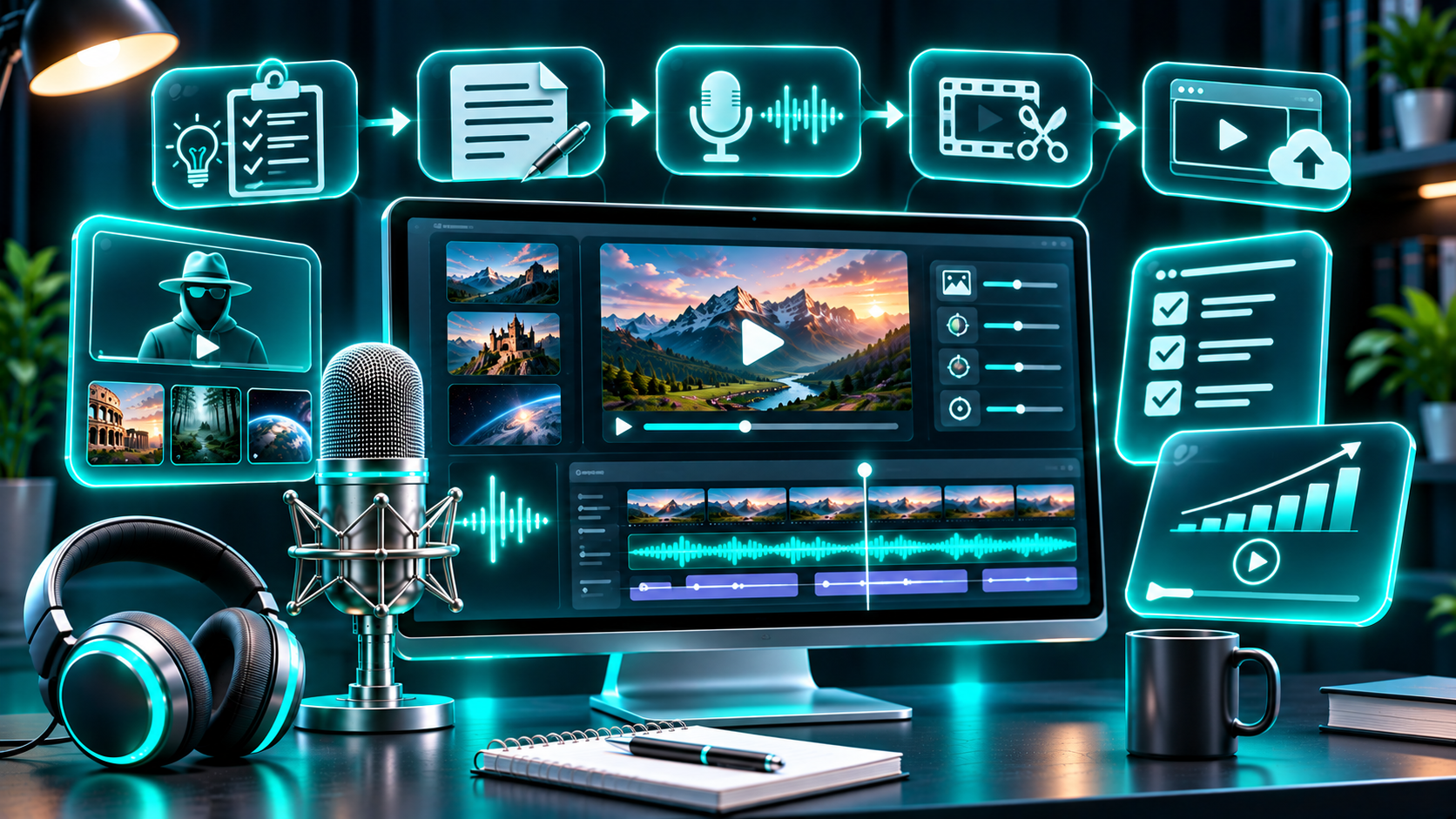
You don’t need to appear on camera or record your own voice to make YouTube videos. You do need a clear point of view, useful scripts, and visuals that support what you’re saying. An AI voice can help with narration, but it won’t turn a copied script or a repetitive video template into original content.
This guide walks through the process—from choosing a channel idea to generating narration with FlashTTS and editing it into a finished video. It also covers the YouTube policies creators should understand before publishing.
1. Choose a niche you can make original videos about
A faceless channel still needs a recognizable identity. Pick a subject you can research, explain, or demonstrate consistently. Avoid choosing a niche only because someone claims it is “easy money.” Audience interest, competition, your knowledge, and the quality of your ideas all matter.
Here are five formats that can work well with narration:
Tutorials: Explain how to use software, complete a task, or solve a specific problem. Use your own screen recordings and examples.
Educational explainers: Break down a topic such as personal finance basics, science, or technology. Verify facts and cite reliable sources in the description where appropriate.
History and biographies: Tell a well-researched story using licensed or public-domain visuals, maps, and original commentary.
Productivity and business: Share frameworks, case studies, or workflows. Add your own analysis rather than simply reading material from other websites.
Fiction and storytelling: Publish original stories, narrated mysteries, or folklore commentary. Be clear about what is fictional and respect the rights attached to any source material.
Before settling on a topic, write down ten video ideas. If they all sound like variations of the same headline, narrow or reshape the concept. A strong channel makes a consistent promise to viewers while giving each video its own substance.
2. Write a script that sounds natural aloud
A good voiceover starts with a good script. Write for the ear, not just the screen: keep sentences clear, explain unfamiliar terms, and read the draft aloud before generating audio. If a line feels awkward when you say it, it may sound awkward when a voice model reads it too.
Try this simple structure:
Hook: State the question, problem, or surprising point the video will answer.
Context: Tell viewers what they’ll learn and why it matters.
Main sections: Explain the ideas in a logical order. Use specific examples.
Takeaway: Summarize the useful point or give viewers one next step.
For example, a tutorial about organizing research could open like this:
“If your research is spread across browser tabs, notes, and screenshots, it’s easy to lose the source you need. In this video, we’ll build a simple system for saving each source, recording the key point, and finding it again when you write.”
That opening makes a clear promise without padding the script with a long greeting. Continue with steps the viewer can follow, and show those steps on screen. Add original observations, examples, or demonstrations so the video offers more than a voice reading generic information.
Use punctuation to guide pacing. Break up long sentences, spell out abbreviations the way you want them spoken, and rewrite confusing numbers or symbols. For names and technical terms, test pronunciation in a short audio sample before generating the full narration.
3. Choose a voice that fits the subject
The best voice is the one that helps your audience follow the video—not necessarily the most dramatic or human-sounding option. A calm, steady voice may suit a software walkthrough. A warmer, more expressive read may fit a personal story. Keep the delivery consistent across a series so returning viewers recognize the channel’s style.
Listen to a short section before committing to the full script. Check pronunciation, pacing, emphasis, and how the voice handles your actual writing. If a sentence sounds flat, improve the sentence first. You can also split a long sentence, add punctuation, or adjust the wording before trying again.
When evaluating a voice tool, check its available voices, languages, export formats, generation limits, and license terms. If you plan to monetize videos or use the audio for client work, confirm that your particular plan and voice are cleared for that use. Avoid cloning another person’s voice without their permission.
4. Generate your narration with FlashTTS
FlashTTS’s text-to-speech page lets you enter text, generate a voice sample, and use the product to create audio. The exact controls may change, but the basic workflow is straightforward:
- Open the
FlashTTS text-to-speech tool.
Paste a short test passage from your script.
Select an available voice and generate a preview.
Listen for pronunciation, pacing, and tone. Revise the script or voice choice if needed.
When the test sounds right, generate the narration in manageable sections and export the audio in a format supported by your editing software.
For a long video, generating sections separately can make revisions easier. If you later change one paragraph, you can replace that section instead of regenerating the entire narration. Keep file names organized—for example, 01-intro, 02-section-one, and 03-outro—so the editing timeline stays easy to manage.
Add a real product screenshot here: Show the FlashTTS text-to-speech workflow using your own account, with any private information removed. Add alt text such as: “FlashTTS text-to-speech workflow for generating YouTube narration.”
Add an audio sample here: Embed a short sample generated from an original script. Identify the voice or settings only if you have verified those details in the product.
5. Edit the narration with your visuals
Open your editor—such as CapCut or DaVinci Resolve—and create a project that matches your intended YouTube format. Import the narration, place it on the timeline, and build the visuals around what the viewer is hearing.
A practical sequence is:
Put the narration in order and remove unwanted silence or repeated takes.
Add screen recordings, original graphics, licensed footage, or other visuals that directly illustrate the script.
Use captions to improve accessibility and make key points easier to follow. Review auto-generated captions for names and technical terms.
Add background music only when it supports the narration. Keep it quiet enough that every word remains clear, and make sure you have the necessary rights to use it.
Watch the full video before export. Check that visuals match the spoken words and that there are no long stretches of unrelated stock footage.
Export a test section first if you are unsure about audio levels, aspect ratio, or captions. Then review the final file on a phone as well as a desktop screen. Many viewers watch on mobile, where tiny text and cluttered visuals are difficult to read.
6. Understand YouTube’s rules on monetization and AI disclosure
Using AI narration does not automatically make a channel ineligible for monetization. YouTube’s monetization policy focuses on whether content is original and authentic. The policy says content should not be mass-produced, generic, repetitive, or manipulative; reviewers may also look at the channel as a whole, including its theme, popular and recent videos, metadata, and About section.
That means a faceless format can still be original—but the work needs to be yours. Research the topic, write or substantially develop the script, add meaningful explanation, and create visuals that serve the video. Repeating the same template with minimal changes, reading material you did not create, or assembling other people’s clips without meaningful added value can create problems under YouTube’s monetization policies. There is no guarantee of monetization simply because a video uses original narration or an AI voice.
YouTube separately requires creators to disclose certain realistic AI-generated or meaningfully altered content. Its examples include making a real person appear to say or do something they did not, altering footage of a real event or place, or generating a realistic scene that did not happen. Disclosure is handled in YouTube Studio’s upload workflow. YouTube says disclosure by itself does not limit a video’s audience or eligibility to earn money.
A generic synthetic narrator reading your original script is not the same as making a real person appear to say something they never said. Don’t assume every use of an AI tool requires the same label—or that no AI use needs one. Review the current YouTube disclosure guidance and answer the upload questions honestly based on the content in your video. YouTube may also apply labels in some cases.
Common mistakes to avoid
Publishing before checking the facts. AI tools can misread names or present incorrect information confidently. Verify facts against reliable sources and correct the script before producing the final voiceover.
Using a script that sounds written, not spoken. Long sentences, dense jargon, and repetitive transitions make narration harder to follow. Read the script aloud and simplify it.
Choosing visuals just to fill the screen. Unrelated stock clips can make a video feel generic. Use visuals that explain, demonstrate, or add context to the narration.
Using a voice without checking permissions. Review the tool’s current terms and the rights attached to your plan. Get consent before cloning a recognizable person’s voice, and don’t imply that a person endorsed your video if they did not.
Uploading many near-identical videos. A repeatable workflow is useful, but every video should have a distinct purpose and meaningful original contribution. YouTube identifies repetitive or mass-produced content as potentially ineligible for monetization.
Ignoring the final listen. Listen to the exported audio in context. Fix awkward pauses, incorrect pronunciations, abrupt edits, and music that competes with the voice.
Frequently asked questions
Can I start a YouTube channel without showing my face?
Yes. You can make videos using narration, screen recordings, animation, original graphics, or footage you have the right to use. The format does not replace the need for useful, original content.
Can AI-voice videos be monetized?
AI narration alone does not determine whether a channel qualifies. YouTube’s monetization policies require original, authentic content and exclude certain repetitive or mass-produced material. Meeting the content policies also does not guarantee that a channel will be accepted into the YouTube Partner Program.
Do I have to disclose an AI voiceover?
YouTube requires disclosure for certain realistic AI-generated or meaningfully altered content. Check the current rules and the upload workflow for your specific video. A generic AI narrator reading an original script is different from synthetic media that makes a real person appear to say or do something they did not.
What should I use for visuals in a faceless video?
Use your own screen recordings, original diagrams, licensed footage, or other assets you are authorized to use. Match each visual to the narration and avoid relying on unrelated clips to fill time.
How do I make the narration sound more natural?
Write short, spoken sentences; check pronunciation; test a sample; and listen to the generated audio before editing. If the delivery feels unnatural, try improving the wording and punctuation before choosing a different voice.
Start with one useful video
You don’t need a complicated production system to publish your first faceless video. Choose one focused topic, write a script that answers a real viewer question, test the narration, and edit visuals that make the explanation clearer. Use AI voiceover as a production aid—not as a substitute for original research, judgment, or care.
If you want to try the narration workflow, visit
FlashTTS Text to Speech. Before publishing commercially, review the current rights and plan details on the
FlashTTS pricing page and confirm they fit your use.